> ## Documentation Index
> Fetch the complete documentation index at: https://docs.e6data.com/llms.txt
> Use this file to discover all available pages before exploring further.
# IP Sets
> This page explains how to manage allowed IP ranges for secure access to e6data.
IP Sets allow cluster connectivity out of the e6data control plane. The set of IP addresses can be used to access the cluster.
Only users with ***SuperAdmin*** or ***DataAdmin*** privileges can manage Cluster Connectivity.
## Create IP Sets
To create an IP Set, please follow the below steps -
1. Navigate to **Connectivity** from left navigation
2. From the dropdown, select **IP Sets**
3. Click on the **CREATE** option provided in the right top corner
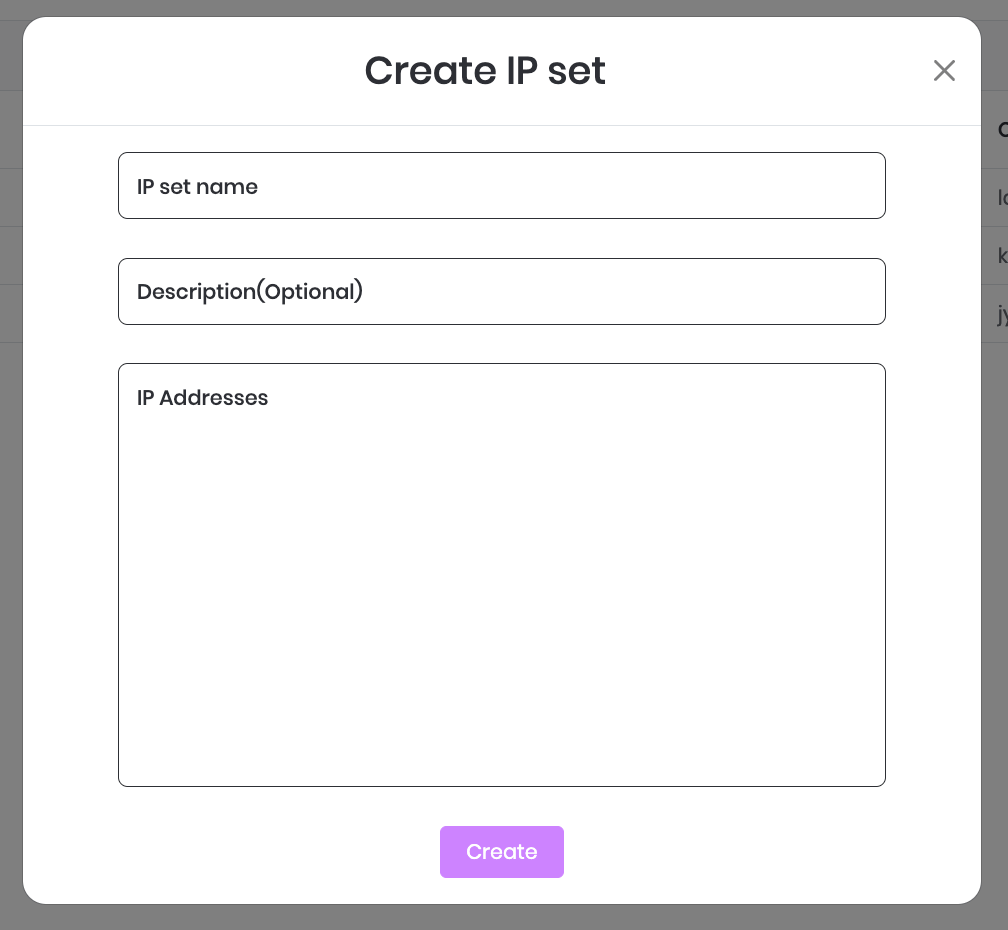
4. Enter the following details in the create form -
1. **IP Set Name:** Provide a name to the IP set
2. **Description**: Enter the description of the IP set. This field is optional.
3. **IP address**: Enter the IP Address that will be used
5. Click on **CREATE.**
 ## Update IP Sets
1. Navigate to **IP Sets**
2. Select the **IP set** you want to update.
3. Click on **Edit.**
4. You can update the following:
1. **IP Set name**: Provide a new name to the IP set
2. **Description**: Update the description (optional)
3. **IP Addresses**: Add or Remove IP addresses as per your requirement.
5. Click on **Update**.
## Delete IP Sets
1. Navigate to **IP Sets**
2. Select the **IP set** you want to delete.
3. Click on **Delete.**
4. Click on **Confirm** to delete.
This documentation is built and hosted on [Mintlify](https://mintlify.com), a developer documentation platform.
## Update IP Sets
1. Navigate to **IP Sets**
2. Select the **IP set** you want to update.
3. Click on **Edit.**
4. You can update the following:
1. **IP Set name**: Provide a new name to the IP set
2. **Description**: Update the description (optional)
3. **IP Addresses**: Add or Remove IP addresses as per your requirement.
5. Click on **Update**.
## Delete IP Sets
1. Navigate to **IP Sets**
2. Select the **IP set** you want to delete.
3. Click on **Delete.**
4. Click on **Confirm** to delete.
This documentation is built and hosted on [Mintlify](https://mintlify.com), a developer documentation platform.